Creating an EC2 instance is one of the first things we do when working with AWS. But AWS does not limit us to just one way of launching an instance. Depending on what you are doing, learning, testing, automating, or running production workloads, different methods make more sense.
In this practical guide, we will walk through multiple real-world approaches to creating an EC2 instance, explain when to use each method, and highlight common mistakes to avoid.
Prerequisites
Before we create an EC2 instance using any method, we need a few basics in place.
AWS Account Requirements
You need an active AWS account with billing enabled. EC2 is a paid service, even though many instance types are included in the Free Tier.
IAM Permissions Needed
If you are using an IAM user, you must have role permissions like:
- ec2:RunInstances
- ec2:DescribeInstances
- ec2:CreateTags
- iam:PassRole (if using IAM roles)
Using the AdministratorAccess policy is fine for learning, but not recommended for production.
Basic EC2 Concepts You Should Know
You should understand these terms:
- AMI (Amazon Machine Image)
- Instance Type
- Key Pair
- Security Group
- VPC and Subnet
Method 1: Create an EC2 Instance Using the AWS Management Console
This is the most beginner-friendly and commonly used method.
Step-by-Step Walkthrough
- Log in to the AWS Management Console
- Go to the EC2 service
- Click Launch instance
- Choose an AMI, for example, Amazon Linux
- Select an instance type
- Choose or create a key pair
- Configure network settings and security group
- Click Launch instance
You can see the full practical implementation of this method here:
Common Mistakes to Avoid
- Forgetting to open port 22 or 80 in the security group
- Launching in the wrong VPC or subnet
- Losing the key pair file
Method 2: Create an EC2 Instance Using a Launch Template
Launch templates are a way to automate EC2 instance creation. They store the configuration of an EC2 instance so you can launch the same setup multiple times without having to go through the full configuration process each time.
It stores configuration values such as AMI, Instance type, key pair, security groups, user data scripts, and more.
Creating a Launch Template
- Go to EC2 Dashboard
- Click Launch Templates
- Create a new template
- Define all required settings
- Save the template
Launching an Instance from a Launch Template
Once created, you can launch instances directly from the template with just a few clicks.
Here is the full practical step-by-step guide for this method:
Method 3: Create an EC2 Instance Using AWS CLI
AWS CLI is a command-line tool that we use to interact with AWS Service APIs. It does the same job, but in a terminal and much more efficiently. You can easily launch an EC2 instance from your terminal using AWS CLI in just a single line command.
Prerequisite for this method
You need to install and configure the AWS CLI tool first before using this method. Follow the article below for a step-by-step guide.
And for creating Access keys, follow this guide.
After configuring the AWS CLI, run this command in your terminal to create a new EC2 instance.
aws ec2 run-instances \

  --image-id ami-064519b8c76274859 \

  --instance-type t3.micro \

  --key-name webserver-elitecloud \

  --subnet-id subnet-0e43e3c16eed87b4f \

  --security-group-ids sg-0d81807c0442fcae5 \

  --count 1 \

  --tag-specifications 'ResourceType=instance,Tags=[{Key=Name,Value=WebServer}]'
Note: These values won’t work for you; you’ll need to adjust them based to your account and preferences.
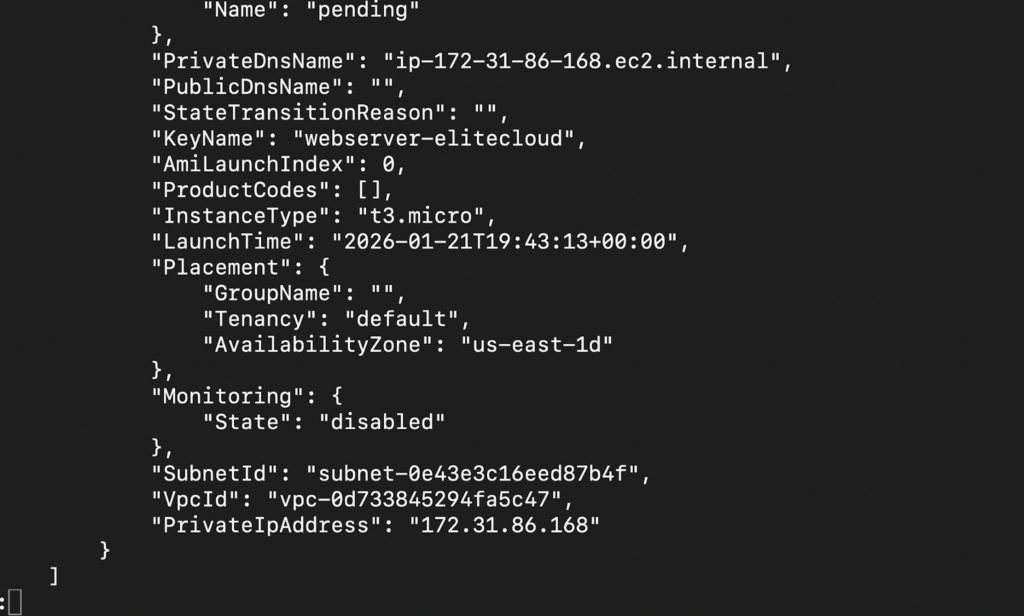
If everything is done correctly, you will be able to see the instance in your console.

Method 4: Create an EC2 Instance Using AWS CloudShell
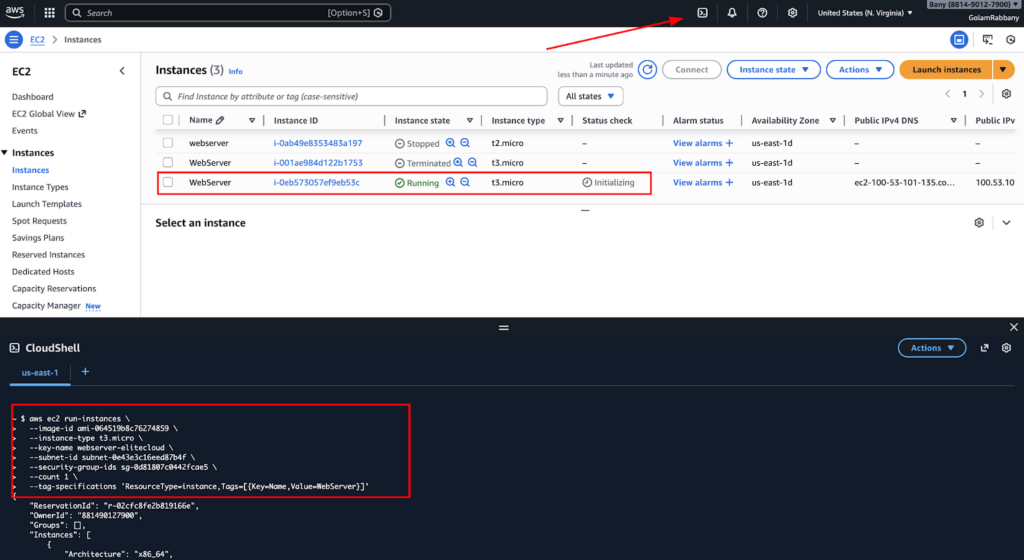
AWS CloudShell is a browser-based terminal that lets you manage AWS resources directly from the AWS Console without installing or configuring anything on your local machine. It comes preconfigured with AWS CLI and common tools, so you can start running commands immediately and interact with services like EC2, S3, and IAM without worrying about credentials, setup, or environment issues.
Launching EC2 from CloudShell
You use the same AWS CLI commands as the local CLI, without installing anything. You can find the cloud shell icon in the top right bar.
Method 5: Create an EC2 Instance Using Infrastructure as Code (IaC)
Infrastructure as Code (IaC) lets you automate cloud resources by defining them in code instead of the console. You can deploy the same setup repeatedly and consistently, making it easy to manage, scale, and version your infrastructure.
Using AWS CloudFormation
For IaC, we are going to use AWS Native CloudFormation. CloudFormation lets us define EC2 resources using YAML or JSON templates. Save the code below to a file.
AWSTemplateFormatVersion: "2010-09-09"

Description: Create EC2 instance using CloudFormation

Resources:

  WebServerInstance:

    Type: AWS::EC2::Instance

    Properties:

      ImageId: ami-064519b8c76274859

      InstanceType: t3.micro

      KeyName: webserver-elitecloud

      SubnetId: subnet-0e43e3c16eed87b4f

      SecurityGroupIds:

        - sg-0d81807c0442fcae5

      Tags:

        - Key: Name

          Value: WebServer
Now run this command:
aws cloudformation create-stack \

  --stack-name webserver-stack \

  --template-body file://ec2.yaml
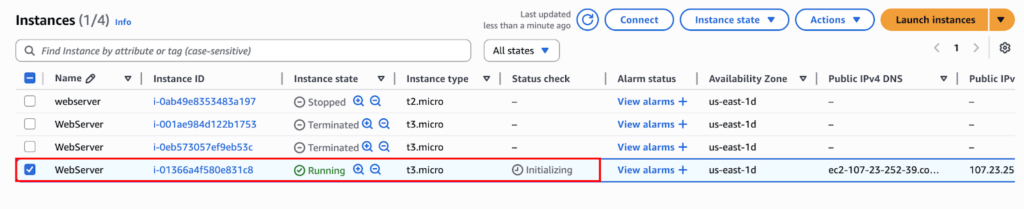
Note: Ensure your access key has permission to use the CloudFormation APIs. For this, I have used CloudFormation full access. But you should use permissions in accordance with your company policy.
Cleaning Up
Make sure to terminate all EC2 instances after you finish testing them.
Comparison of All EC2 Instance Creation Methods
- Console and Wizard: Best for learning and quick testing
- Launch Templates: Best for standardization
- CLI and CloudShell: Best for automation and speed
- IaC: Best for production and scaling
There is no single best method. The best method depends on your goal.
Best Practices for Creating EC2 Instance
Security Considerations
- Use IAM roles instead of access keys
- Restrict security group rules
- Rotate key pairs when needed
Cost Optimization Tips
- Use Free Tier where possible
- Stop unused instances
- Right-size instance types
Conclusion
AWS provides multiple ways to create EC2 instances because different scenarios require different approaches. As beginners, we start with the console. As professionals, we move toward templates, CLI, and Infrastructure as Code.
Is 30% of Your Cloud Budget Being Wasted?
Get a free AI-powered analysis of your cloud infrastructure. Discover hidden costs, security risks, and optimization opportunities—with zero obligation.
| 28% Avg. Cost Savings | 2000+ Businesses Optimized | 100% Automated Analysis |
Get Free Savings Report → Book Consultation
| ✓ Read-only access | ✓ No code/data access | ✓ Revoke anytime |