When you work with EC2 long enough, you realize one thing very quickly. Repeating the same setup again and again is a waste of time. Install packages, configure services, harden security, deploy your app, then repeat the process for the next instance. That is precisely where custom AMI comes in.
In this article, I’ll walk you through how we actually create and use custom AMIs in real-world AWS environments.
What Is an AMI and When Should You Use a Custom One
An AMI, or Amazon Machine Image, is basically a blueprint of an EC2 instance. It contains the OS, root volume, installed software, configurations, and optionally attached data volumes.
You should use a custom AMI when:
- You have a standard server setup that you launch often
- You want faster instance launch times
- You are working with Auto Scaling or Launch Templates
- You want consistent environments across dev, staging, and production
If you are still installing packages manually on every new instance, you are doing extra work.
Prerequisites Before Creating a Custom AMI
Before creating an AMI, your EC2 instance should be properly prepared. This part matters more than people think.
Make sure:
- The instance is working exactly as you want future instances to work
- All required packages are installed
- Configuration files are finalized
- Sensitive data like SSH keys or temp files are removed if needed
- The instance is in a healthy state
You can create an AMI from a running instance, but in production, you should stop the instance first according to your company policy. It helps avoid filesystem inconsistency, especially for databases.
Creating a Custom AMI from an Existing EC2 Instance
This is the most common and simplest method.
Preparing the EC2 Instance
First, connect to the instance and do your setup. For example:
- Install Nginx, Apache, Docker, Node, Java, or whatever you need
- Configure system services
- Set timezone, users, permissions
- Deploy application code if required
Once everything is verified, you are ready to create the AMI.
Creating the AMI Using the AWS Console
Now go to the EC2 console and select your EC2 instance. For this, I’m going to stop the instance. Now click Actions → Image and templates → Create image.
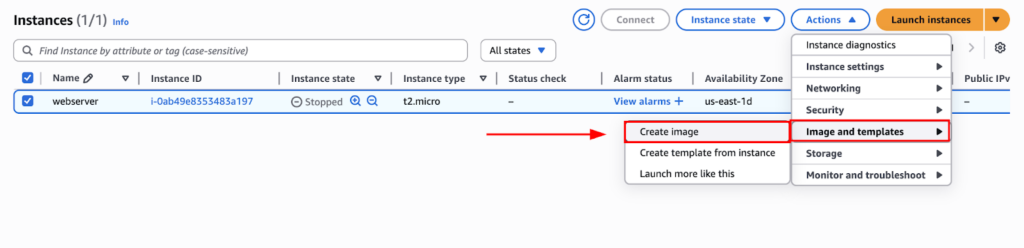
This will take you to the AMI creation page. Here, fill in the necessary information. And click on “Create image”.
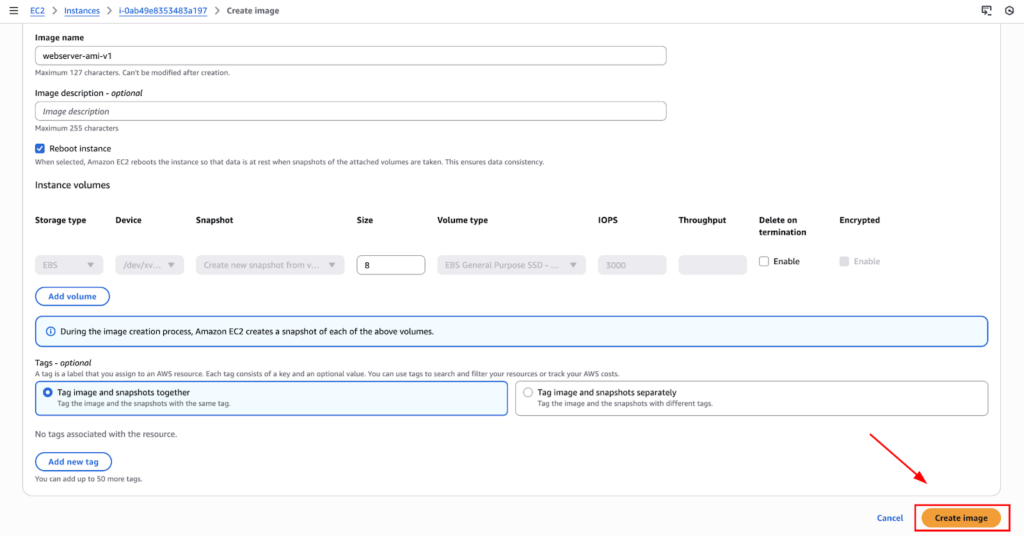
AWS will now create snapshots of the attached volumes and register a new AMI. This process runs in the background.
After some time, the image will be created. Which you can see from the EC2 sidebar, Images > AMIs.

Creating a Custom AMI Using AWS CLI
Sometimes you do not want to rely on the console, especially in scripted environments. In that case, you can use AWS CLI to do the same.
The basic command looks like this:
aws ec2 create-image \

  --instance-id i-0ab49e8353483a197 \

  --name "web-server-ami-v2" \

  --description "Custom web server AMI, AWS CLI"
If you want to avoid rebooting the instance:
--no-reboot

Now, going back to the AMIs dashboard, you will be able to see the new AMI in pending status.

Understanding AMI Components
Many people think an AMI is just an image file. It is not.
A custom AMI includes:
- A root EBS snapshot
- Optional additional EBS snapshots
- Launch permissions
- Block device mappings
When you delete an AMI, snapshots are not automatically deleted. This is important later when cleaning up.
Launching a New EC2 Instance from a Custom AMI
Once the AMI status is Available, you can use it like any other image.
Go to AMIs and select your custom AMI. Then click on Launch instance from AMI.

Choose name, instance type, key pair, network, and security group. Now, click on “Launch instance”.
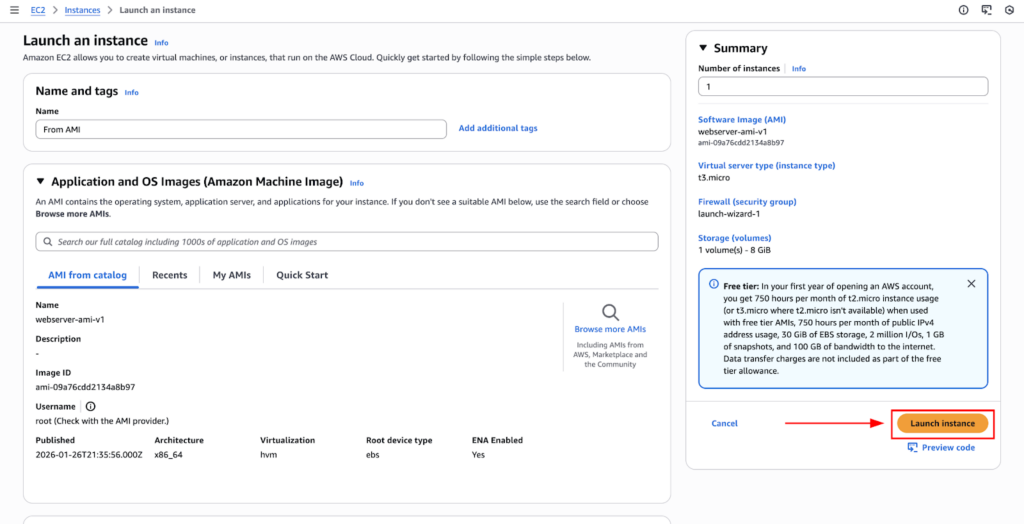
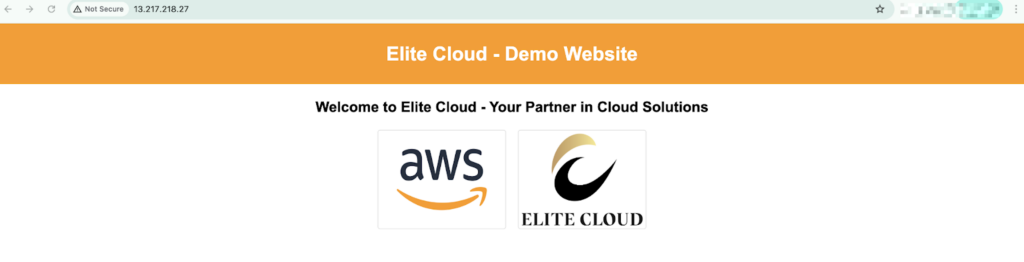
This will successfully create a new instance from that AMI, without any change from the original one.

Cleaning Up Old AMIs and Snapshots
Unused AMIs indirectly incur cost through snapshots.
When cleaning up:
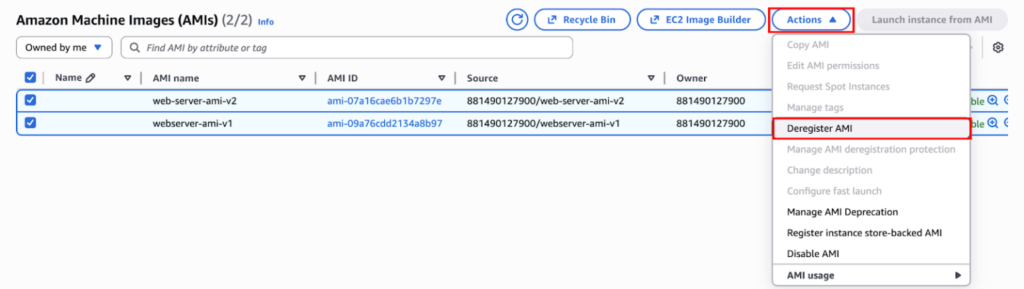
Deregister the AMI by selecting the AMI > Actions > Deregister AMI.
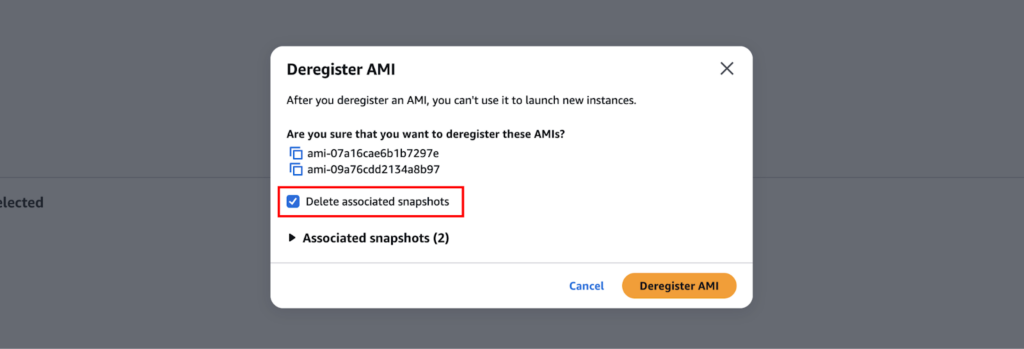
Here, click the “Delete associated snapshots” checkbox; otherwise, you will be billed for the snapshots.
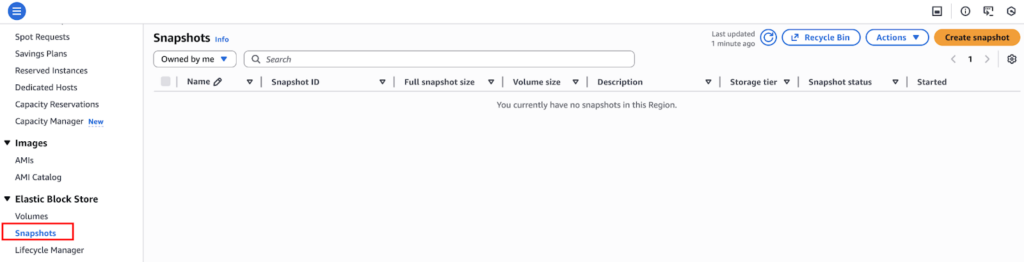
You should also confirm if the snapshots have been removed from the Snapshots dashboard.
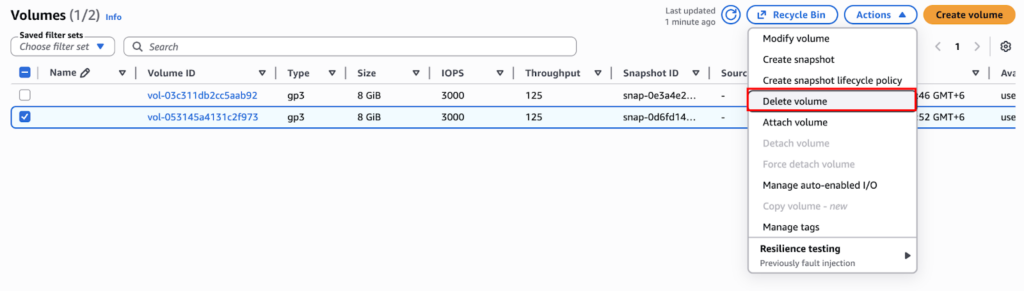
And also delete the new EBS volume created by the new instance.
Common Mistakes and Practical Troubleshooting
Some mistakes I see often:
- Creating AMIs with temporary files or logs
- Forgetting to clean SSH authorized keys
- Deleting an AMI but leaving snapshots behind
- Overwriting AMIs instead of versioning
- Using AMIs instead of user data for dynamic configs
AMIs are best for static configuration. Use user data for things that change per instance.
Best Practices for Managing Custom AMI
From real-world usage:
- Always version your AMIs
- Use clear naming conventions
- Stop instances before creating production AMIs
- Combine AMIs with Launch Templates
- Document why an AMI exists
Custom AMIs are not just a convenience. They are a tool for reliability and consistency.
Conclusion
Custom AMIs are one of those AWS features that quietly save hours once you start using them properly. You build once, reuse everywhere, and avoid repeated setup work.
If you are running more than a few EC2 instances or using Auto Scaling, creating custom AMIs is not optional. It is the correct way to do things.
Is 30% of Your Cloud Budget Being Wasted?
Get a free AI-powered analysis of your cloud infrastructure. Discover hidden costs, security risks, and optimization opportunities—with zero obligation.
| 28% Avg. Cost Savings | 2000+ Businesses Optimized | 100% Automated Analysis |
Get Free Savings Report → Book Consultation
| ✓ Read-only access | ✓ No code/data access | ✓ Revoke anytime |