If you have ever launched EC2 instances manually from the AWS console, you already know it works fine for testing. The problem starts when you need consistency. One wrong instance type, a missing security group, or a forgotten tag can quietly break things in production. That is exactly where EC2 Launch Template fit in. They let you define how an instance should be created once and then reuse that configuration safely, repeatedly, and at scale.
This guide focuses on how to create and use EC2 Launch Templates.
What is EC2 Launch Template
An EC2 Launch Template is a reusable blueprint for launching EC2 instances. It stores the configuration AWS needs to create an instance, such as the AMI, instance type, security groups, storage, IAM role, and user data.
Instead of configuring these settings every time you launch an instance, you define them once and reuse them. This reduces mistakes and maintains consistent environments.
The biggest advantage is that launch templates support versioning, which means you can update configurations safely without breaking existing workloads.
When You Should Use a Launch Template
If you are launching instances only once or twice for testing, you might not feel the need for a launch template. But in real environments, launch templates quickly become essential.
You should use a launch template if you:
- Launch similar instances repeatedly
- Use Auto Scaling Groups
- Want safe configuration updates
- Care about consistency across environments
- Plan to use Spot Instances or mixed instance types
What You Need Before Creating a Launch Template
Before creating a launch template, make sure you already have a few basics ready.
You will need an AWS account with EC2 permissions, an AMI to launch from, a key pair if SSH access is required, and at least one security group. An IAM role is optional but strongly recommended if your instance needs access to AWS services.
Understanding the Key Parts of a Launch Template
A launch template is just a collection of settings, but a few of them deserve special attention.
The AMI defines the operating system and base configuration. The instance type defines performance and cost. Security groups control network access. IAM roles let instances access AWS services securely without credentials. User data is used to bootstrap software at launch, such as installing packages or starting services.
Creating an EC2 Launch Template Using the AWS Console
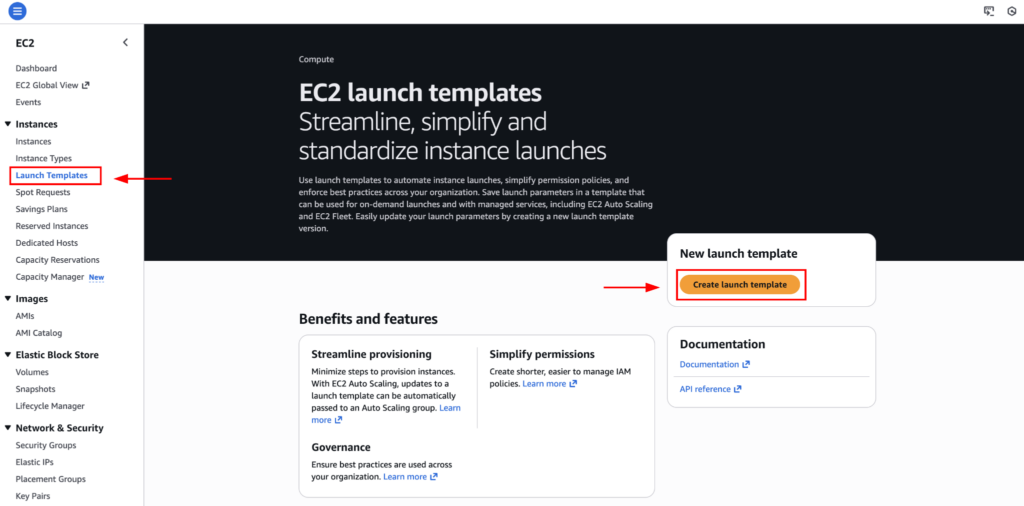
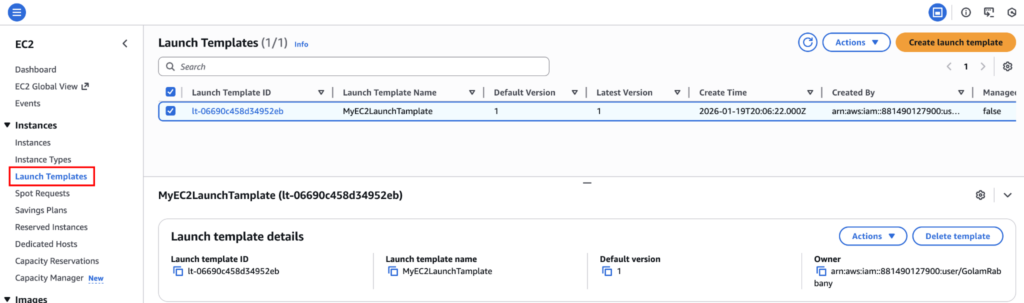
Start by signing in to the AWS Management Console and opening the EC2 dashboard. From the left menu, go to Launch Templates and click Create launch template.
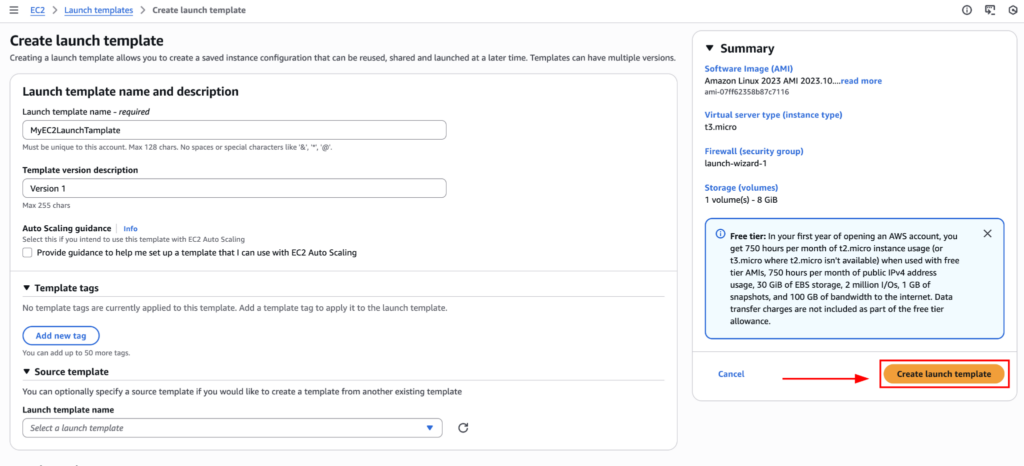
Now fill in the necessary information including name and template version description. It’s very important to use proper names and descriptions in production environment to avoid unnecessary confusion.
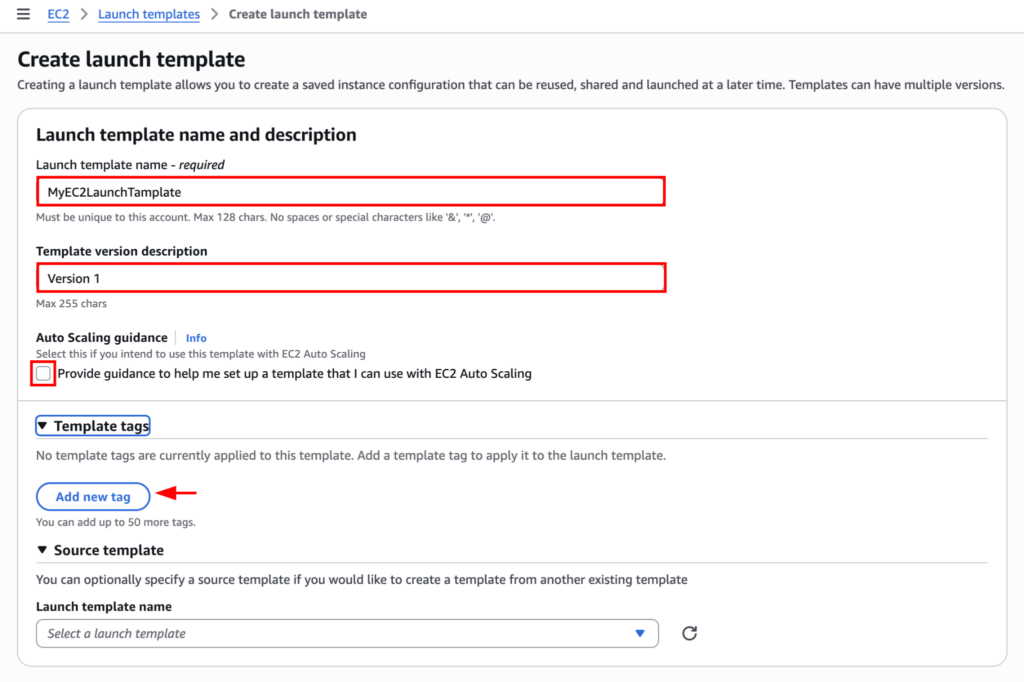
You can also click on the “Auto Scaling guidance” if you intend to use it for auto scaling. As well as you can also add tags for your template from here.
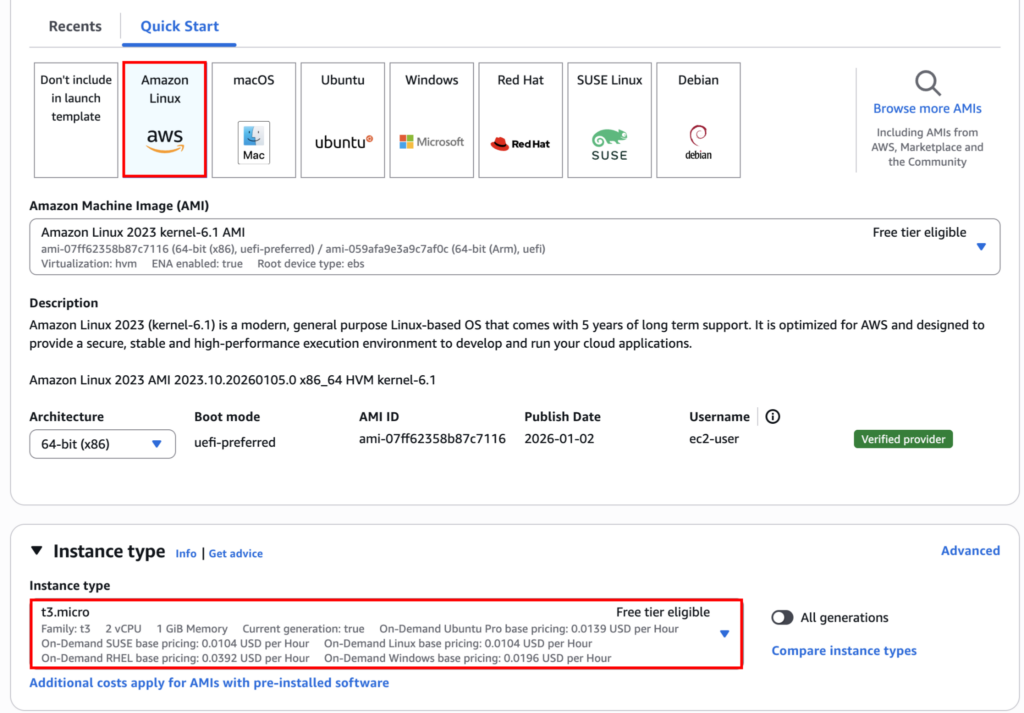
Next, choose the AMI and instance type. For AMI you can click on “Quick Start” menu and select the one you are going to need. I will go with Amazon Linux. And for instance type I will go with t3.micro, which is free tier eligible.
Now you can select a keypair for this launch template. This way you will be able to control all the instance with a single keypair. Decide this according to your work requirements and company policy. I will keep this section empty as recommended.

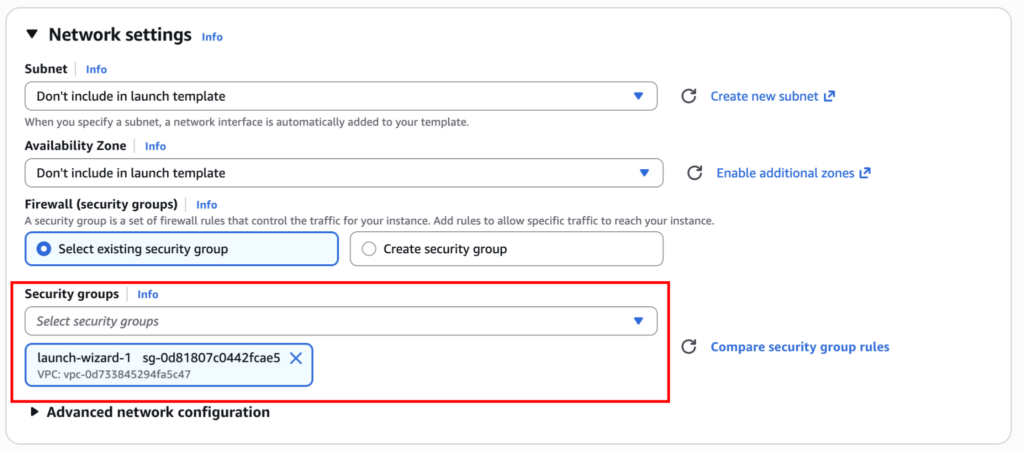
For networking, choose the security group but leave the subnet empty if this template will be used with Auto Scaling. Subnets are usually handled by the Auto Scaling Group itself. And you can also add it while creating the instance.
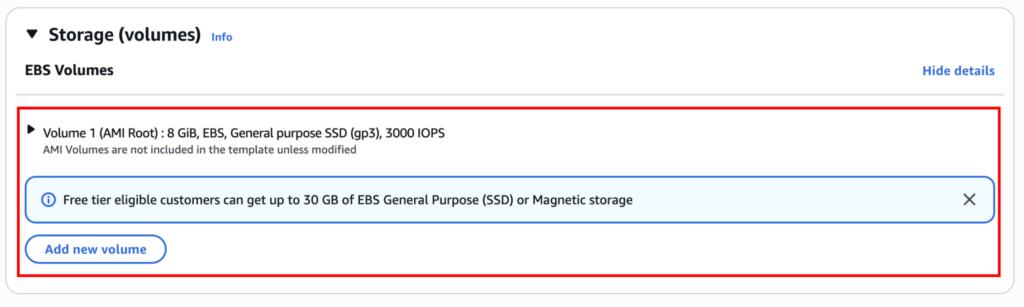
Now, move on to storage settings and adjust the root volume size or type if needed.
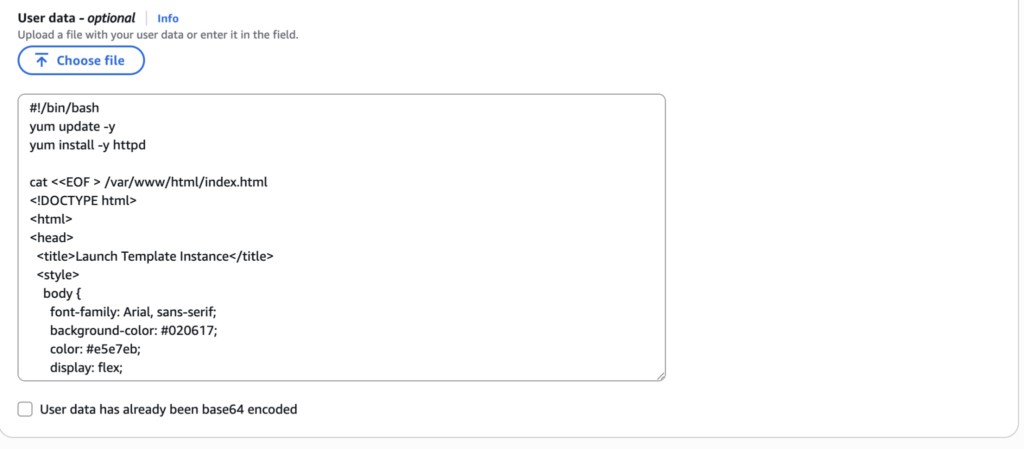
In advanced details, attach an IAM role if the instance needs AWS access. This is also where you add user data scripts.
Once everything looks correct, click on “Create launch template”. AWS will automatically create version 1.
You can see the Launch Tamples once it’s created.
Launching an EC2 Instance using EC2 Launch Template
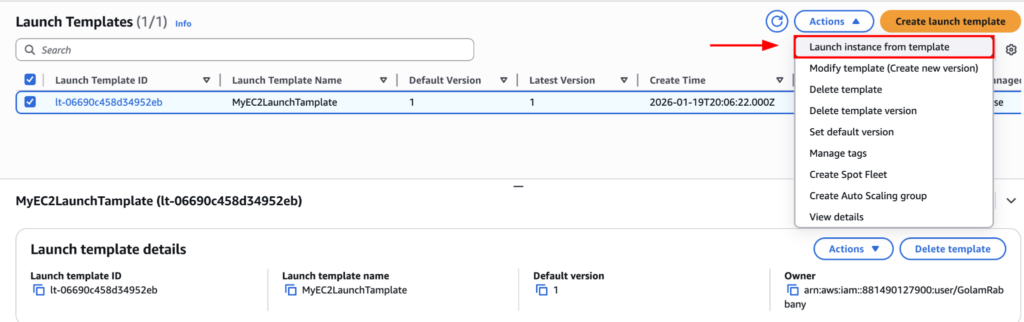
Now let’s create an EC2 Instance using the launch template we have just created. For that select the launch template and click on Actions > Launch instance from template.
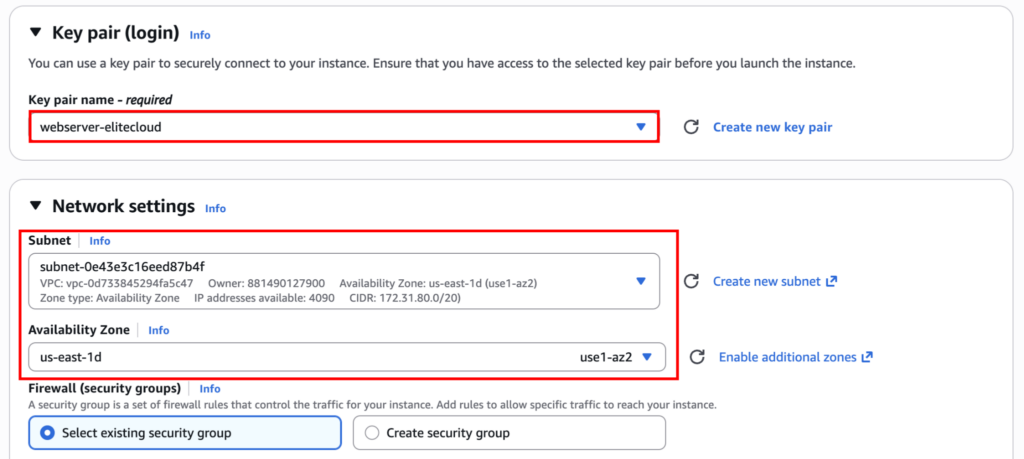
Here you have to choose the key pair and subnet, as we kept them empty.
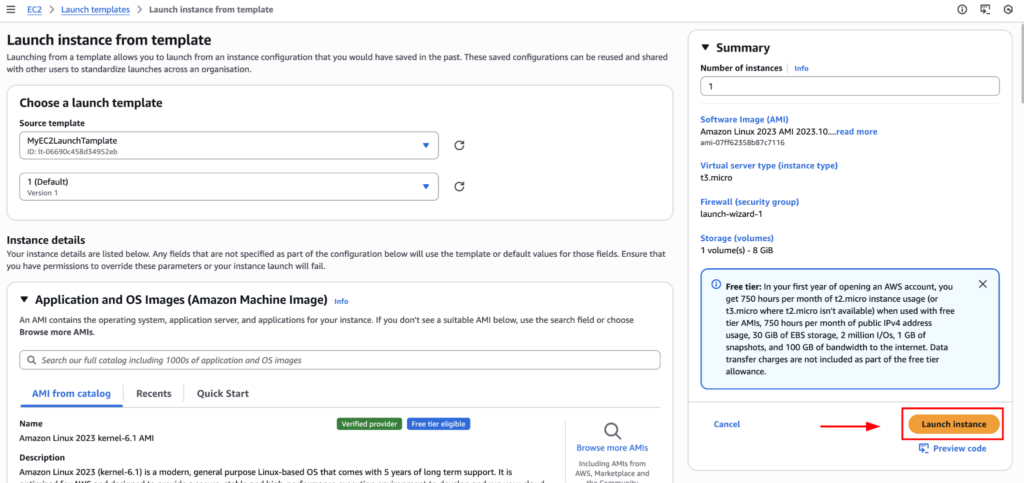
After setting them, select the number of instance you want and click on “Launch instance”.
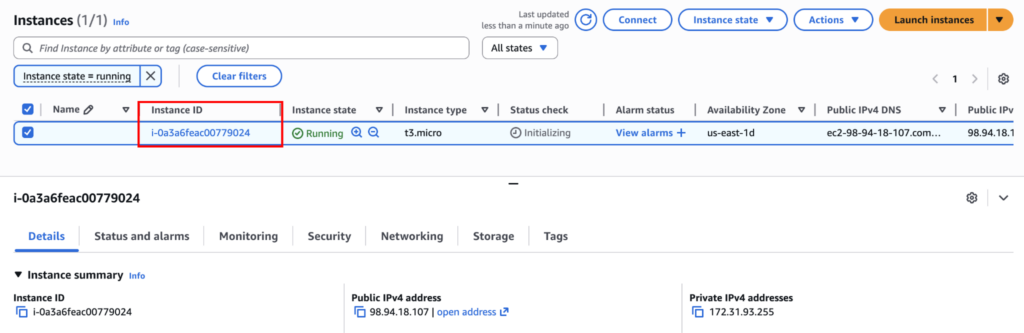
If everything is done correctly you will be able to see the instance running.
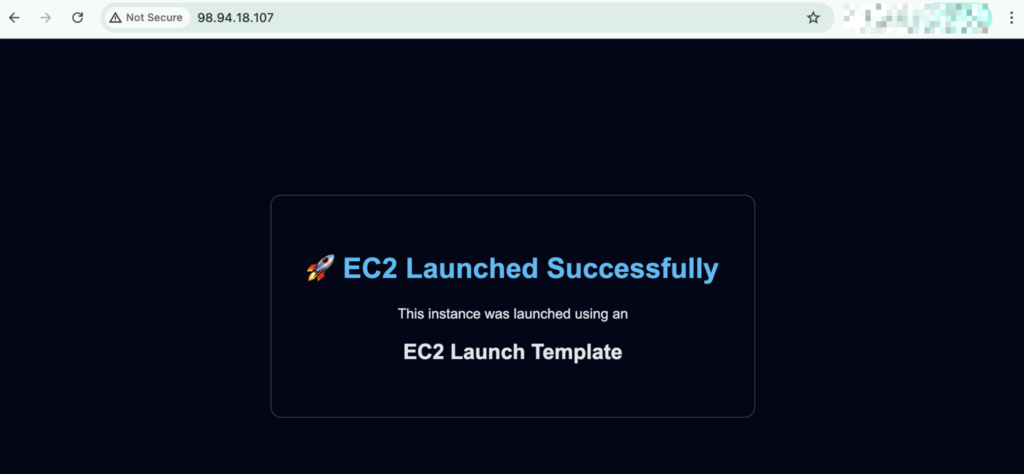
We can also confirm this by going to the public ip, as this will show us the website we put on user data.
Modifying EC2 Launch Template
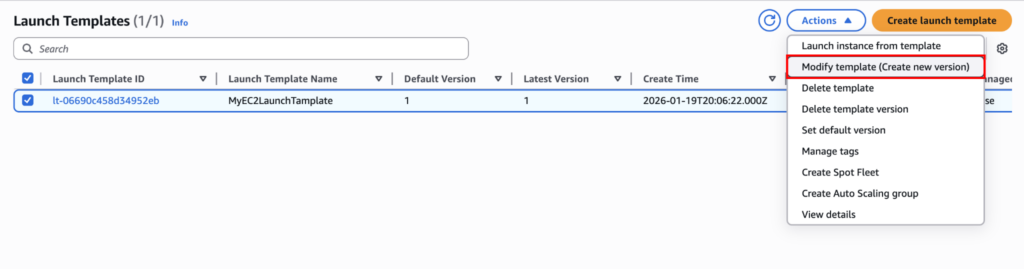
If you want to change any settings inside your EC2 launch template, you can modify it by selecting the launch template, Actions > Modify template (Create new version).
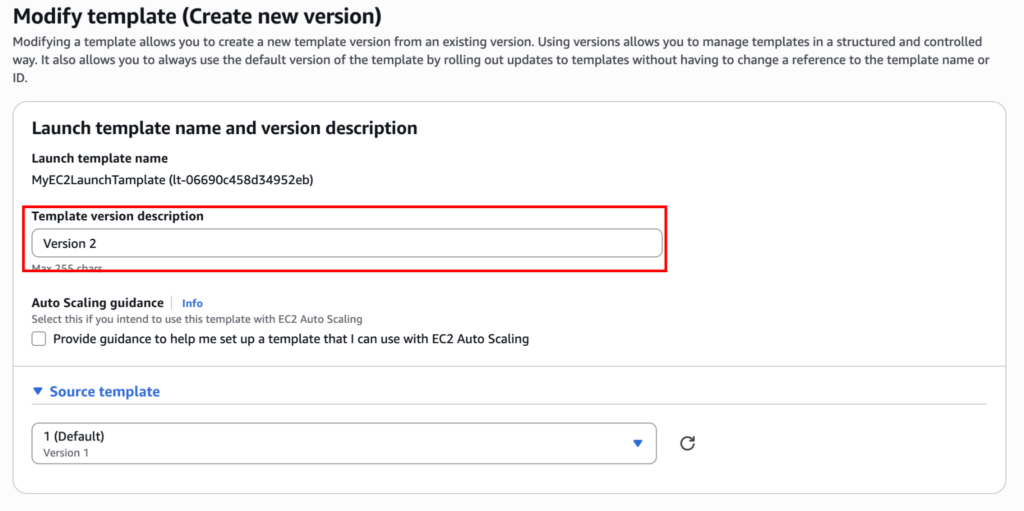
First give a new description that describes the changes.
Here, I will only change the user data and add a new line in the website. Once you re done with the changes, click on “Create template version”.
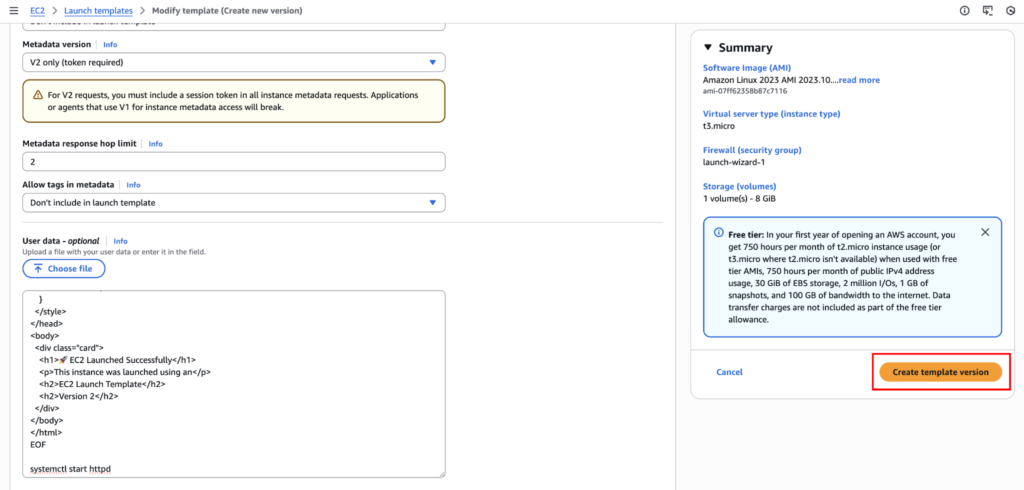
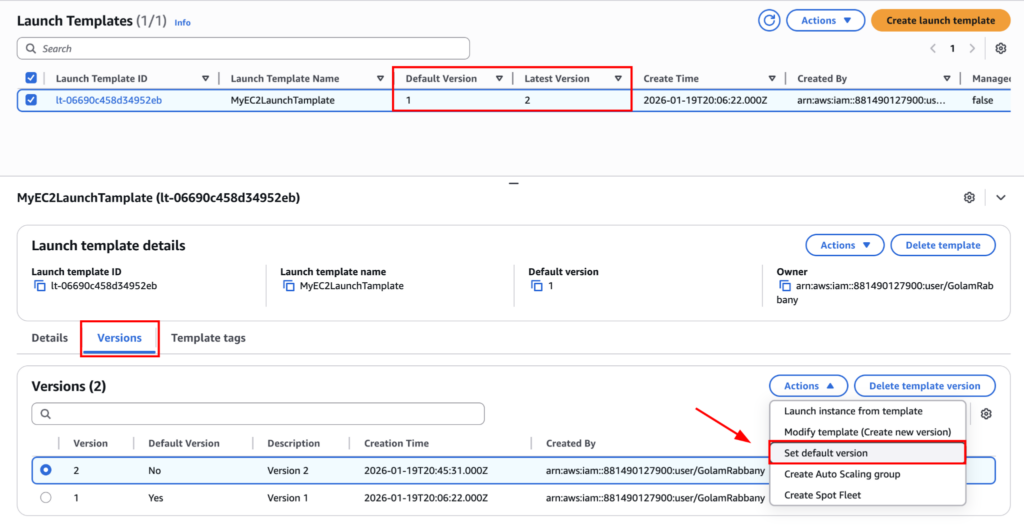
Doing so will create a new version of the same template. But it wont be active by default. To do that select the template, go to Versions tab and select the latest version, click on Actions > Set default version.
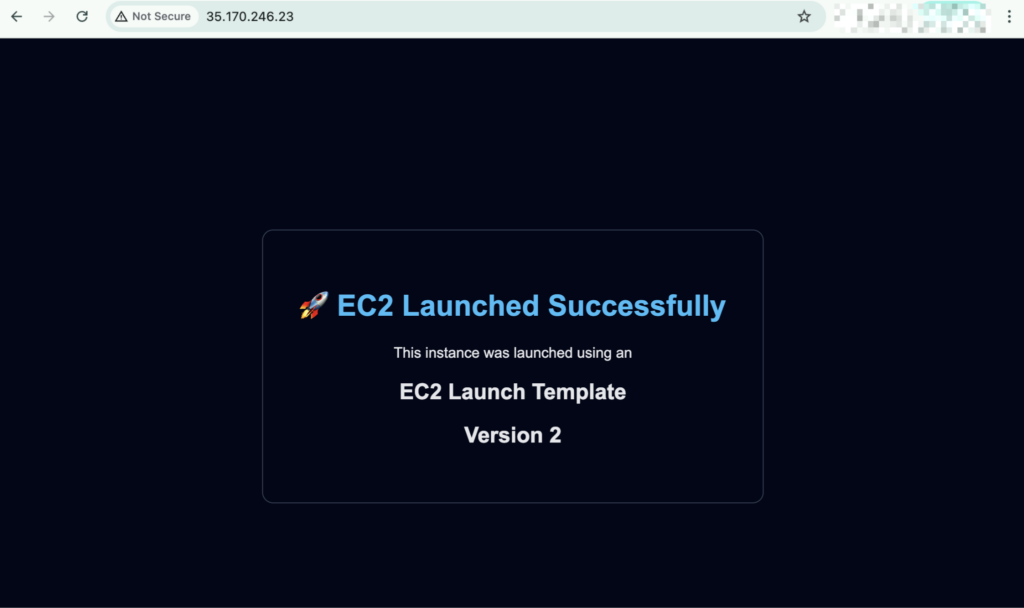
Now lets launch a new EC2 instance using the same launch template, but latest version. And you can see this website shows that it’s launched using version 2.
Every change creates a new version. Older versions stay intact. This allows you to test changes safely and roll back instantly if something goes wrong.
Clean Up
Make sure to terminate all the instance spawned by launch template. And also delete the launch template if not required.
Final Thoughts
EC2 Launch Templates are not just an AWS feature, they are a reliability tool. They reduce mistakes, make scaling predictable, and give you control over how infrastructure evolves over time.
If you care about consistency and safe changes, launch templates should be part of your default workflow.