Changing EC2 instance type is one of the simplest ways to improve performance and reduce AWS costs. Whether your workload needs more CPU power, more memory, or you simply want to right-size and save money, updating the instance type takes only a few steps. This article explains everything you need to know, including both console steps and AWS CLI commands.
What is EC2 instance type?
EC2 instance type defines the hardware configuration of your virtual machine. It includes CPU, memory, network performance, storage options, and specific capabilities like GPU. You are billed according to the instance type you choose and its usage.
Why you might need to change it
There could be several reasons why you might choose to change your instance type.
Including oversized instances that’re costing you more than needed, performance issues, switching to a new generation instance, and more.
Pre Change Checklist
Before modifying the instance type, verify the following to avoid downtime or errors.
Check instance state
You can only modify the instance type when the instance is in the stopped state.
Review compatibility
Not all instance types work with all AMIs. Check:
- Architecture compatibility, for example x86 vs ARM.
- Virtualization type, HVM is required for most new types.
- Whether your instance supports the Nitro system.
- Network/ENA driver support.
Verify EBS backed volume
Most modern instance types require an EBS backed root volume. If you are using an old instance store image, changes might not be allowed.
Method 1: Change Instance Type from AWS Console
Step 1: Stop the instance
Go to EC2 console, select your instance, choose Instance state, then click Stop instance.

Step 2: Modify the instance type
With the instance stopped, click Actions and select Instance settings > Change instance type.
- Choose the new instance type, for example t3a.micro or m6i.large

Now choose the new instance type you want, for example, here we will choose t2.micro to t2.medium instance type.
You can compare the instance pricing and specs after selecting the instance type.

Now, click on the “Change instance type” button. If everything is done correctly, this will change the instance type. You can see any warning message while changing the instance type if there is any.

Step 3: Start the instance
After saving the change, restart the instance. Applications will come back online in the new configuration.
Method 2: Change Instance Type Using AWS CLI
For automation or scripting, use the AWS CLI. First, check the instance status using the command. Make sure to change it to your instance ID.
aws ec2 describe-instances \

  --instance-ids i-0ab49e8353483a197 \

  --query "Reservations[].Instances[].{InstanceId:InstanceId,State:State.Name}" \

  --output table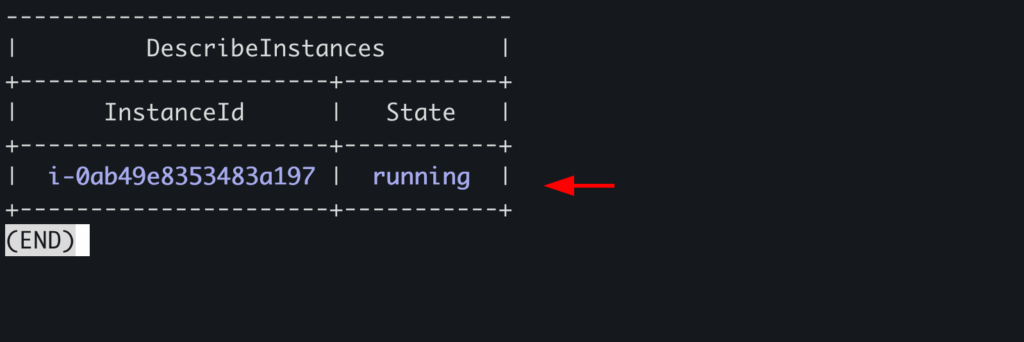
Step 1: Stop the instance
Now stop the instance using the command,
aws ec2 stop-instances --instance-ids i-0ab49e8353483a197And recheck the instance status.
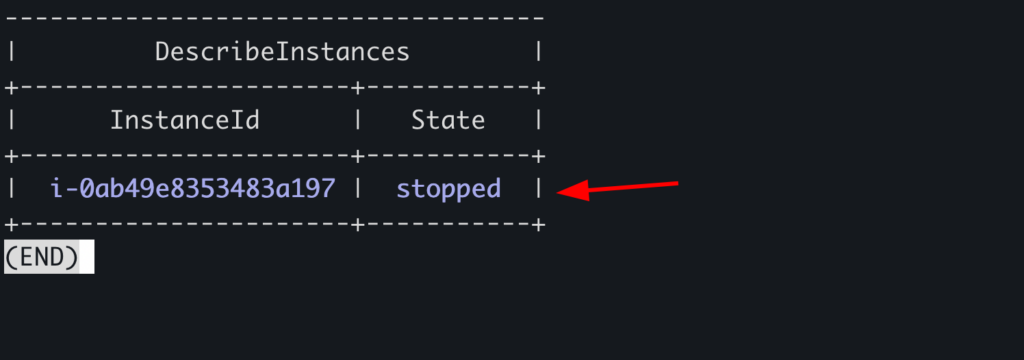
Step 2: Modify the instance type
Now, let’s modify the instance type from t2.medium to t2.micro. To do that use the command below:
aws ec2 modify-instance-attribute \

  --instance-id i-0ab49e8353483a197 \

  --instance-type "{\"Value\": \"t2.micro\"}"
If everything is done properly, it will change the instance type. Which you can check using the command:
aws ec2 describe-instances \

  --instance-ids i-0ab49e8353483a197 \

  --query "Reservations[].Instances[].{InstanceId:InstanceId,InstanceType:InstanceType}" \

  --output table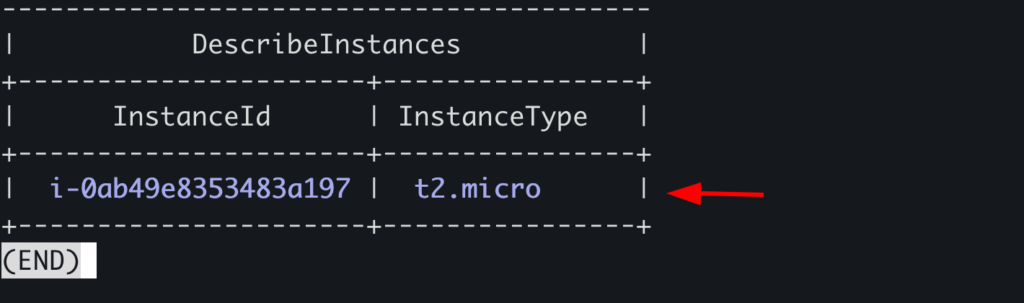
Start the instance again using the command, aws ec2 start-instances –instance-ids i-0ab49e8353483a197
Note: Make sure you change the instance ID with your own instance ID.
Choosing the Right Instance Type
AWS provides different instance types. Understanding the instance type is crucial for changing and achieving cost savings. Choosing the wrong instance type can underperform your application and also cost you more than necessary.
General purpose vs compute vs memory
- Use T, M, or A series for balanced workloads.
- Use C series for CPU heavy applications.
- Use R or X series for memory intensive apps like databases.
- Use G, P, or Inf for GPU and ML workloads.
You can read the articles below to learn more about instance types.
Best Practices
Use AWS Compute Optimizer
This tool analyzes CPU and memory usage and recommends right-sizing.
Test changes in non-production first
Always verify application behavior before applying changes to production environments.
Use launch templates
Launch templates allow you to standardize configurations and change instance types easily across environments.
Conclusion
Changing EC2 instance type is a simple task, but choosing the right one requires understanding your workloads and AWS capabilities. With proper planning and the right tools, you can boost performance and cut AWS costs significantly.
Still Not Sure Which EC2 Type to Choose? Let Elite Cloud Help
Elite Cloud helps you right-size your Amazon EC2 environment by analyzing real usage patterns, recommending optimal instance types, and reducing AWS costs without sacrificing performance.
👉 Schedule a session with the Elite Cloud team and start optimizing your EC2 infrastructure with data-driven right-sizing.