When working with AWS, we often need to migrate an EBS volume from one region to another. AWS does not provide a direct cross-region move for EBS volumes. For this, we need to create a snapshot of the volume, transfer it to the other region, recreate the volume from that snapshot, and reattach it to the new instance.
The need for migration arises for many different reasons, such as:
- Moving infrastructure closer to users
- Setting up disaster recovery
- Migrating to a cheaper region
- Rebuilding architecture from scratch
What We Are Actually Doing (Architecture Overview)
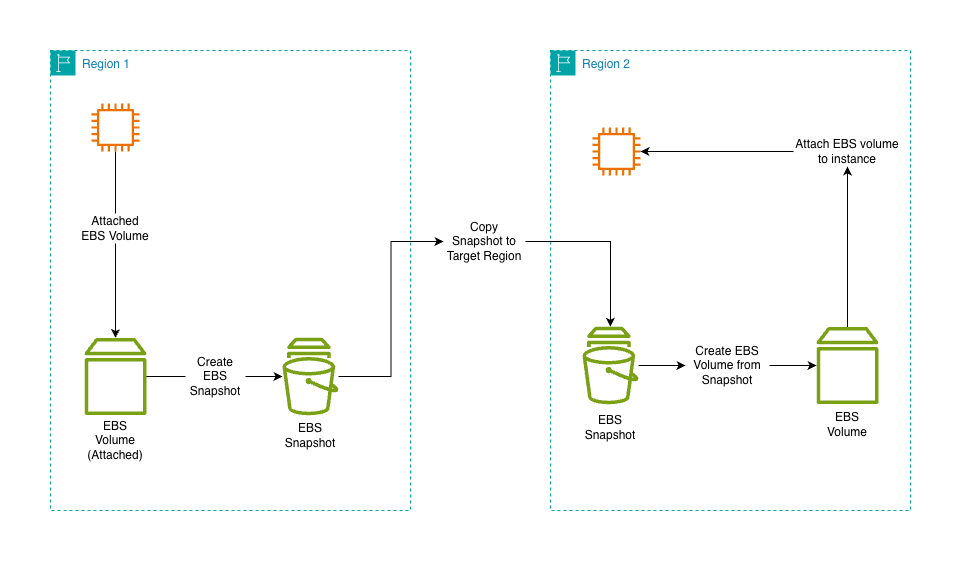
First, we will create a snapshot of the EBS volume in the source region, then copy that snapshot to the target region, and from it create an EBS volume and attach it to the EC2 instance. Then we can mount this volume in EC2 for use. We are not moving the volume here. We are recreating it.
Prerequisites Before You Start
Before we touch the console, make sure:
- You have permission for EC2 and EBS actions
- You know which volume you are migrating
- You understand which AZ your new instance is in
- You are aware of cross-region snapshot copy costs
Important: If this is production data, stop the instance before creating the snapshot. This helps avoid filesystem inconsistency.
Step 1: Create a Snapshot of the EBS Volume
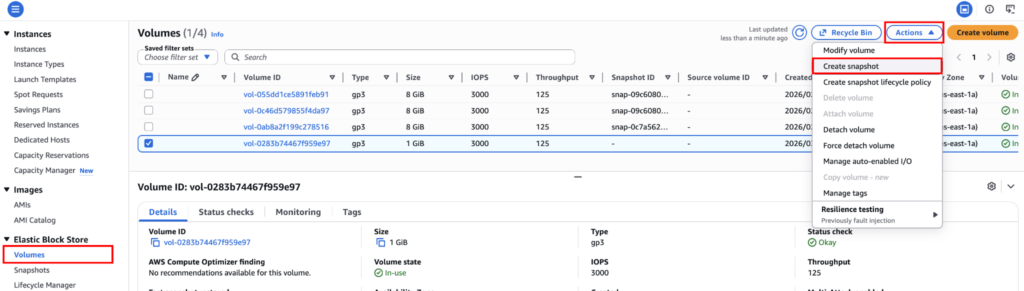
Go to the EC2 dashboard, then navigate to Elastic Block Store → Volumes. Select the volume you want to transfer, and click Actions → Create Snapshot.
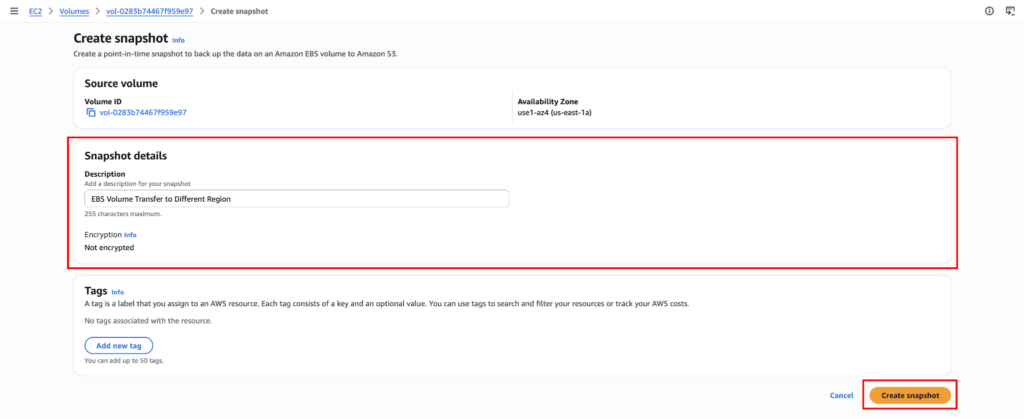
Here, provide a clear description, then click “Create snapshot”.
Now go to Snapshots and wait until the status shows Completed. If you skip waiting, the copy step will fail.

Pro tip: If your instance runs critical workloads, stop it first. Snapshot consistency is important.
Step 2: Copy the Snapshot to Another Region
Now, we move the snapshot. First, go to Snapshots, select your snapshot, and click Actions → Copy snapshot.

Select the destination region and click “Copy snapshot”.
NOTE: If the volume is encrypted, AWS will prompt for a KMS key in the target region. You must have a valid KMS key there.
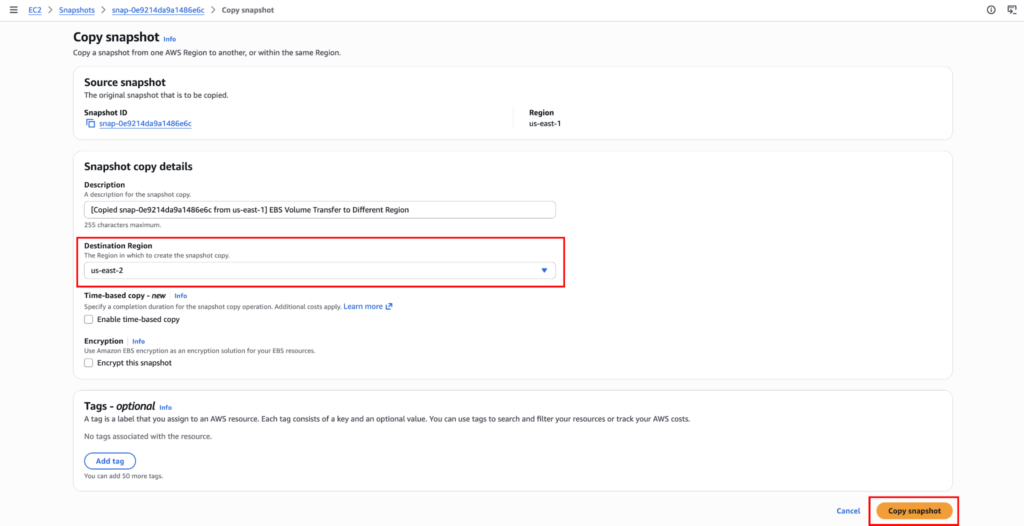
Switch to the destination region and watch the snapshot copy until it displays as Completed.

This depends on the snapshot size and the data changed.
Step 3: Create a New EBS Volume in the Target Region
Now that the snapshot exists in the target region, switch to the destination region. Go to Snapshots, select the copied snapshot, and click Actions → Create volume from snapshot.
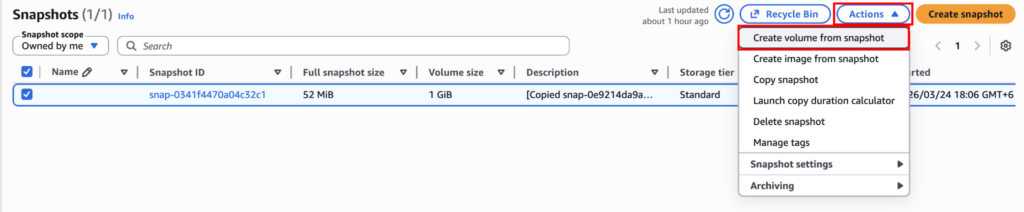
Important:
You must select the correct Availability Zone.
EBS volumes are AZ-specific.
If your EC2 instance is in us-east-2a, your new volume must also be in us-east-2a.
Now choose:
- Volume type, usually gp3
- Size, you can increase but not decrease
- Encryption settings (If required)
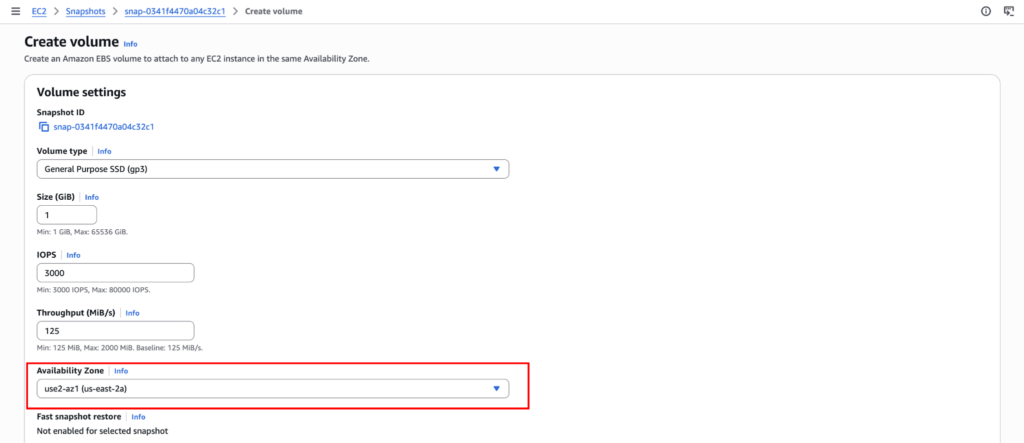
Now click on “Create volume”.
Step 4: Attach the Volume to an EC2 Instance
Now we can attach it. Go to EC2 → Volumes. Select your new volume. Then, click on Actions → Attach volume.
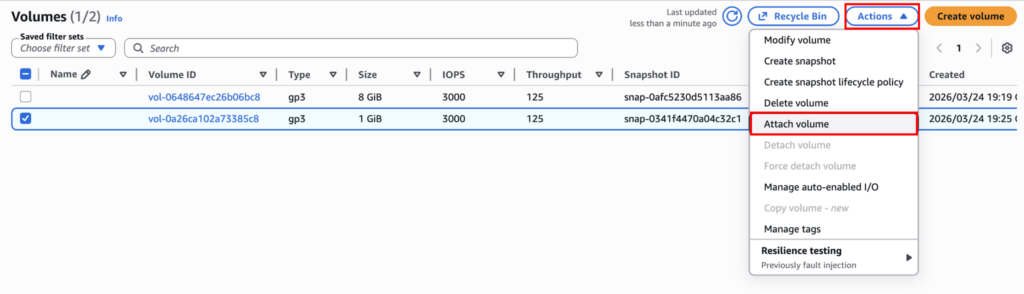
Select the instance and the device name here.
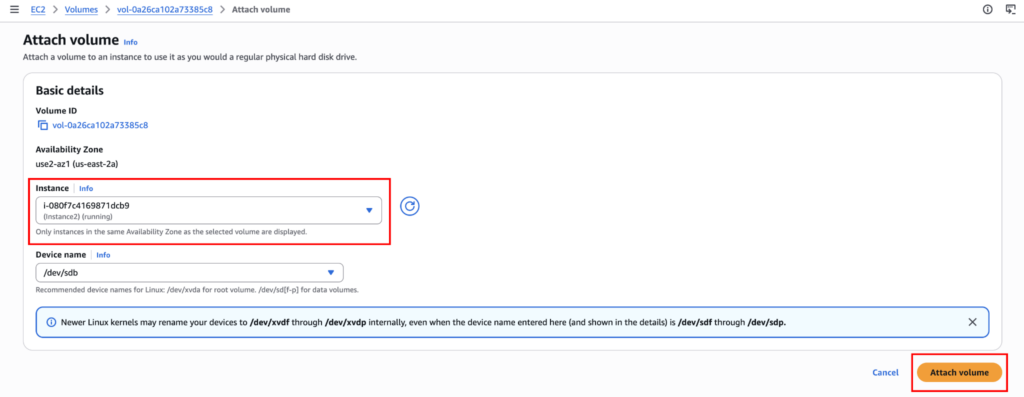
For Linux, device names look like:
- /dev/xvdf
- /dev/sdb
For Windows, AWS handles naming automatically.
Now click on “Attach volume”.
Step 5: Mount and Verify the Volume (Linux)
SSH into your instance and check available disks with lsblk. You should see the new device.
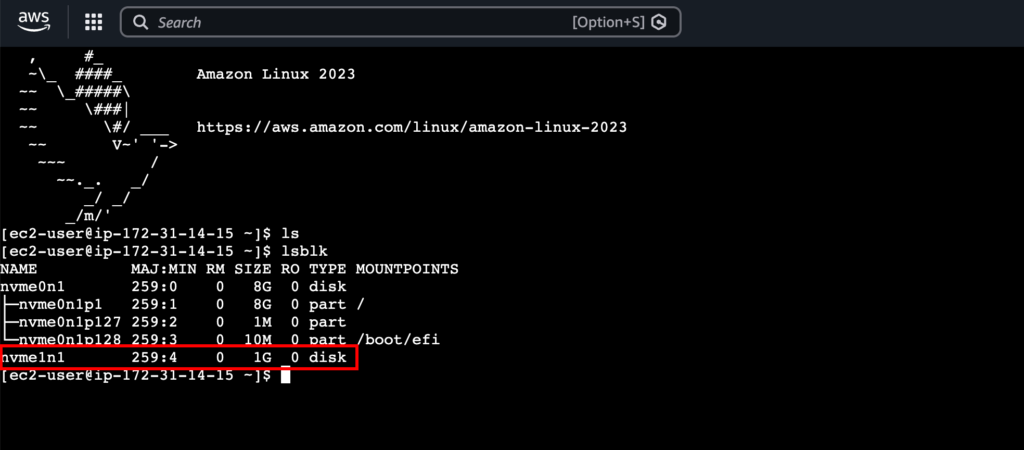
If it already has a filesystem, simply mount it.
sudo mkdir /data
sudo mount /dev/xvdf1 /data

You can now verify the transferred volume data. Here, the previously written file is still present. This indicates the migration was successful.
Special Case: Encrypted Volumes
If your source volume was encrypted:
- Snapshot will also be encrypted
- Copy process requires a KMS key in the target region
- You can re-encrypt with a different key during copy
Common mistake: forgetting to create a KMS key in the new region.
Cost Breakdown (Important)
Here is what you are charged for:
- Snapshot storage
- Cross-region snapshot copy data transfer
- New EBS volume storage
You are not charged for moving the volume directly because you are not actually moving it; you are storing and copying snapshots.
After verification, delete:
- Old unused snapshots
- Old unused volumes
Otherwise, it will cost you unnecessary money.
Common Mistakes We See
- Wrong Availability Zone: If the AZ does not match the instance, you cannot attach the volume.
- Forgetting encryption compatibility: KMS must exist in the destination region.
- Not stopping instances for critical workloads: Risk of an inconsistent filesystem.
- Leaving old snapshots: Silent cost leak.
Final Thoughts
Migrating an EBS volume across regions isn’t complicated. However, rushing can easily lead to mistakes. By thinking carefully, following the process, and verifying each step, the procedure remains predictable and safe.